This is a collection of habits, tips, and things I have learned from using Macs and helping friends. It is not meant as a complete beginner’s tutorial.
For the last year or so, I have helped quite a few friends with their MacBook problems. Mostly software troubleshooting, or working out whether something might be a hardware problem. Actually unscrewing the machine has always been beyond me 🥲.
I also help family and friends with Windows, but I feel much more confident troubleshooting macOS because it is what I use every day. After a decade of using Macs, I realised how much I did without thinking. A few of these habits even surprised friends who had used Macs for years.
I used to be quicker to dismiss some of macOS’s decisions as annoying. Learning more about software and cybersecurity has made me more patient. An operating system does a lot out of sight, and its interface has to offer useful control without expecting technical expertise or making security protections too easy to bypass.
My general philosophy is simple: I would rather someone remember what their Mac can do and where to find it again than memorise twenty shortcuts. Of course, shortcuts help with speed, efficiency, and impressing your friends. But the finger gymnastics can come later. Apple keeps a reference of Mac keyboard shortcuts for when you need one.
The things I would start with
Skip to whichever part would be useful:
- Closing apps and using sleep
- Updates and backups
- Clearing clutter and startup apps
- Spotlight and Finder
- The Dock and menu bar and window tiling
- Screenshots, recordings, and Preview
- File transfers between devices
- Cloud storage
The screenshots are from macOS 27 Golden Gate. Exact labels and available features can vary with your macOS version.
Knowing a few names makes it easier to explain a problem or follow instructions. I would start with Finder, the Dock, the menu bar, Spotlight, and Control Center. I will point them out as we go.
First, understand what you are closing
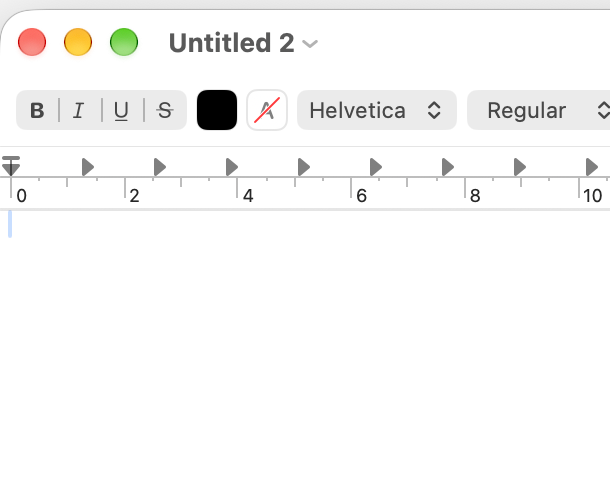
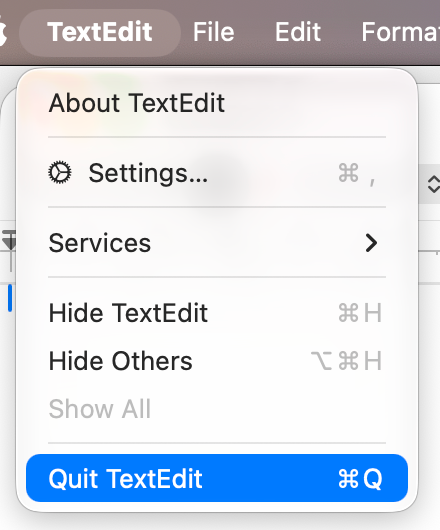
Click the app’s name in the menu bar at the top of the screen and choose Quit, or press Command-Q.
The menu bar is the whole strip across the top of the screen. The app menus on its left side change with the active app.

When you want to close an app, remember that the red button in the top-left corner of the window generally closes only that window, leaving the app running.
A small dot beside an app’s icon in the Dock means it is still running, even after its last window closes.

To move between open apps, hold Command, tap Tab until the app you want is selected, then release Command. Command-Tab switches apps, rather than cycling through every window of the same app.
As for the MacBook itself, I generally recommend just closing the lid between everyday sessions. That normally puts it to sleep, ready to pick up where you left off. You do not need to make a complete shutdown part of every evening’s routine.
If an update or app asks for a restart, go ahead when you can save your work. A restart is also a reasonable first step when something starts behaving strangely: save what you are doing and choose Apple menu → Restart.
Sometimes the fix is an update
- Before updating macOS or apps, make sure you have a current backup.
- Check for macOS updates: open Apple menu → System Settings → General → Software Update.
- Keep apps updated through the App Store or their own update controls, especially for security fixes.
Before spending an afternoon troubleshooting something strange, check whether there is a software update waiting. Sometimes the fix really is that boring.
There is a difference between a routine update and a major upgrade. I would normally install an update from macOS 27.0 to 27.0.1 as a matter of routine, especially if it fixes security problems. Moving from macOS 26 to macOS 27, however, is a bigger decision: I would read what changed, check that important apps or plugins still work, watch a couple of YouTube videos explaining the changes, and then decide whether and when to upgrade.
Apple also releases security updates for some older macOS versions, so you do not necessarily have to jump to a new major release on day one. I would not treat that as a promise of full security coverage, though. Apple warns that older versions do not receive fixes for every known security issue. Waiting a little before going ahead with a major upgrade and ignoring updates indefinitely are rather different habits.
A little digital housekeeping
- See what is taking up space: open System Settings → General → Storage.
- Review Desktop, Documents, and Downloads: organise what you want to keep and delete files you no longer need.
- Uninstall apps using the developer’s own uninstaller when one is provided. Otherwise, moving the app from Applications to the Trash is the usual route.
- For a deeper uninstall, consider Raycast’s uninstall option to review associated files before removing an app. Check its removal list before deleting anything.
Whether you are a gamer, photographer, doctor, or a finance corpo, chances are documents, photos, and apps will pile up faster than you expect. A bigger drive may delay running out of space, but it does not organise the mess for you. Digital housekeeping matters whatever your disk size.
You clean your house every once in a while, right? Your Mac could probably use a clear-out too. I mean digital clutter, although you should probably wipe the screen occasionally as well (Apple’s cleaning advice).
Deleting an app can still leave settings or other app data behind. Some of those files may be worth keeping, so I do not assume every related file is disposable.
Be careful with macOS cleaner apps. Some can be useful if you know what you want them to remove, but I would start with a manual cleanup. I would not give an unfamiliar app broad access to my files just because it claims my Mac needs cleaning.
For large photos or documents you want to keep, an external SSD can be useful. Copy them over, open a few to check they transferred properly, and make sure you have another independent copy before deleting the originals. If the SSD now holds the only copy, you have only moved the files, not backed them up.
One small source of clutter is app installers. A downloaded .dmg file is a disk image, which opens like a temporary disk in Finder. For the common drag-to-install setup, copy the app into Applications, then eject the mounted image using the eject button beside it in Finder’s sidebar. Closing the installer window does not eject it. You can also delete the downloaded .dmg when you no longer need it.
Back up before something goes wrong
- Copy important documents and photos regularly. Weekly is a reasonable starting point, and more often for things you would hate to lose. Open a few backed-up files occasionally to check the copies.
- For automatic backups, set up Time Machine: connect a suitable external drive, search System Settings for Time Machine, and follow the setup.
Time Machine can also let you recover earlier versions of files. The first backup can take a long time, but later backups copy what has changed and are usually quicker.
I have helped friends whose move from an Intel Mac to an Apple silicon Mac became a headache when bringing their old setup across. That has made me more cautious about migrations, but it is not a reason to skip backups. Apple supports transferring information from a Time Machine backup with Migration Assistant. Backing up your old Mac and deciding how much of its setup to bring to a new one are separate decisions.
I would still keep an easy-to-find copy of the files I care about most. And I would keep the old Mac or its backup intact until I had settled into the new one.
Let Spotlight do some of the looking
Click the magnifying glass in the menu bar, or press Command-Space, then type an app or file name into Spotlight.
If you keep hunting through Applications or a crowded Dock, this is a useful habit to try.
That is enough to start. You do not need to learn every feature of it. Try opening Screenshot, Preview, or System Settings this way a few times and see whether it becomes a habit.
On older versions of macOS, I used to run into a lot of Spotlight indexing problems, where it seemed unable to find things I knew were there. It has been much more reliable for me lately, although I am now rather invested in my Raycast setup. If yours seems unable to find your files, Apple explains how Spotlight’s index works and how to rebuild it. It can also take time to catch up after a system update.
Tidy the Dock and menu bar
- Keep frequent apps in the Dock and drag them into an order that makes sense to you. To remove an icon, drag it out until Remove appears, then let go. This does not uninstall the app.
- Choose useful controls for the right side of the menu bar: search System Settings for Menu Bar, or Control Center on older versions. Pick controls you use often.

The Dock does not need to be a museum of every app you have ever opened. The point is to make the useful things easy to reach.
Choose what opens at login
- Review startup apps: open System Settings → General → Login Items & Extensions.
- Under Open at Login, select an app you do not want opening automatically and click the remove button (−). This removes it from the startup list without uninstalling it.
Friends ask me about this a lot. It is easy to click through a row of setup options, accepting an app’s offer to open at login along the way. After a few installations, you have a small parade of applications opening whenever you log in. This is one place I check when that happens.
App Background Activity is a separate list. Those helpers can do useful things such as checking for updates or syncing files while the main app is closed. The Extensions section covers additions such as Finder integrations and VPN components. I would look at which app or feature an item belongs to before turning it off.
Screenshots, recordings, and Preview
- Take a screenshot or recording: open Screenshot from Applications → Utilities, or find it through Spotlight.
- Try copying text before retyping it: on supported Macs and images, open the picture in Preview and select the text with Live Text.
Screenshot has visible controls for capturing the screen, a window, or a selected area, and for screen recordings. Command-Shift-5 opens the same toolbar. Command-Shift-4 lets you drag to select an area of the screen. Press Space after that shortcut, then click a window to capture it instead.
I am generally happy with Preview for opening PDFs and images. It can also annotate images, mark up PDFs, and add or rearrange PDF pages. Live Text recognises text in pictures so you can copy it. You may still want a separate app for optical character recognition (OCR) if you need more than Live Text offers, but I would try the built-in option first.
Make Finder show you where you are
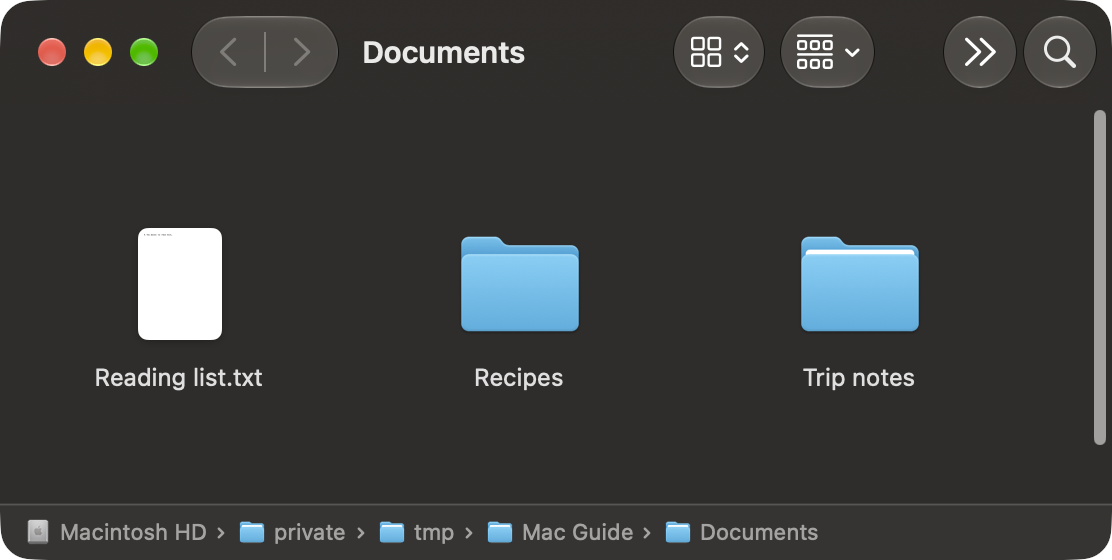
- Show the current folder’s location.
View → Show Path Bar - Start searches in the current folder.
Finder → Settings → Advanced → When performing a search → Search the Current Folder
A path is the written address of a file or folder, such as /Users/yourname/Documents.
The Path Bar makes the current folder’s location visible at a glance.
If I open a folder and search, that is usually the folder I mean to search in. Finder’s settings let you choose whether searches start there, across the Mac, or with the previous search scope.
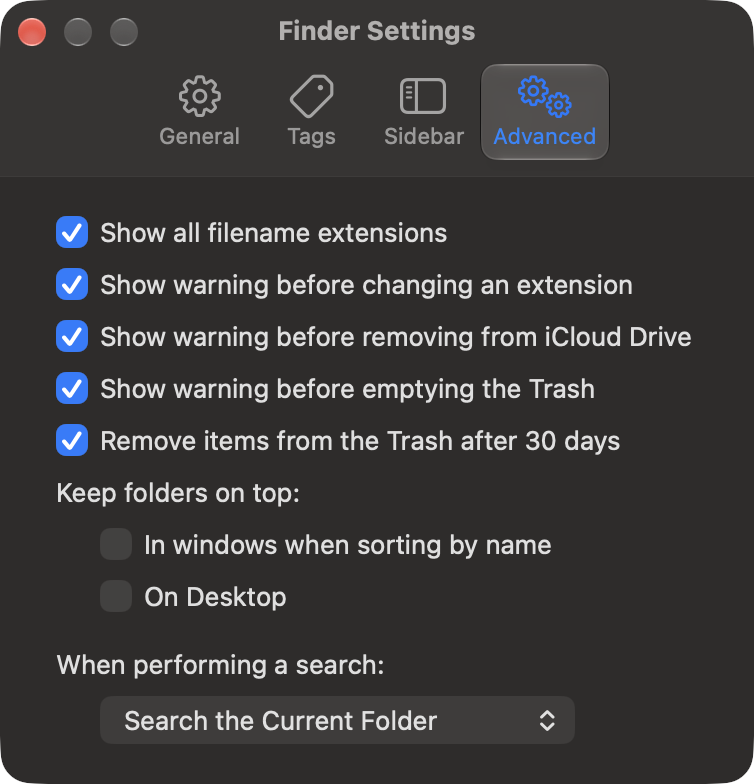
Finder’s search limitations even nudged me into experimenting with Swift and working on my own little app, ScopedFind. Apparently adjusting a setting was not quite enough tinkering for me.
Quick Look is another favourite. Select a file and press Space to preview it without opening the full app, or choose Quick Look from its right-click menu.
Holding Option while a menu is open can sometimes reveal alternative commands. In Finder’s right-click menu for a file, this reveals Copy … as Pathname. You can also right-click a folder in the Path Bar and copy its pathname.
In Finder’s Go → Go to Folder, you can paste a folder path to jump straight there. The shortcut is Command-Shift-G.
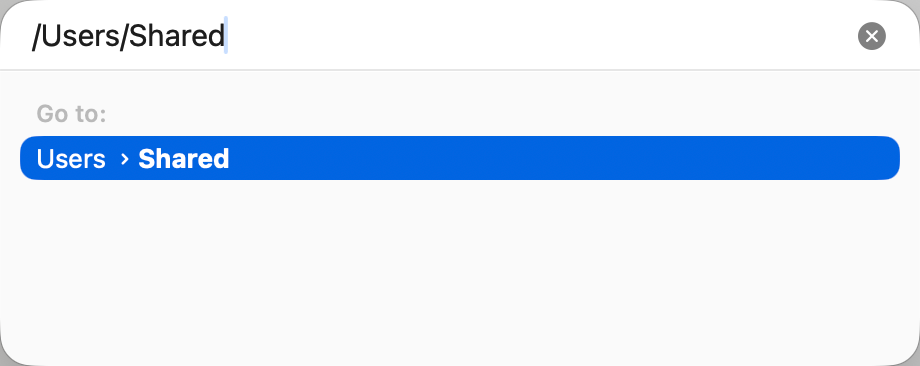
This pairs nicely with one of my favourite discoveries: file pickers understand paths too. When a file picker opens in the wrong folder, for example while uploading a file in a browser, Command-Shift-G opens Go to Folder there as well, which can save a lot of time.
Try the built-in window tiling
On macOS Sequoia 15 or later, use Window → Move & Resize, or hover over the green button to arrange windows.
I used to use Rectangle to arrange windows. I have since been enjoying macOS’s built-in window tiling, which can put two windows neatly beside each other without much fuss.
I especially like the default Fn-Control-Left Arrow and Fn-Control-Right Arrow shortcuts: they put the active window in the left or right half of the desktop. I use these a lot.
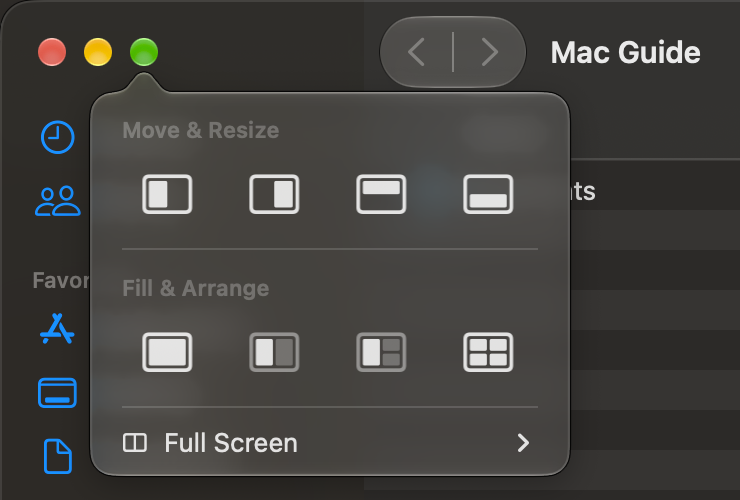
Full screen puts the app in its own space, which may be more separation than you wanted when you were only trying to make a window bigger.
If you want windows to arrange themselves automatically or want more control, there are tools such as AeroSpace and yabai. These are more of a tinkering project. AeroSpace does not require disabling macOS’s System Integrity Protection (SIP). Some of yabai’s advanced features require partially disabling it, although its basic window management does not. I would try the built-in options before going down that rabbit hole.
File transfer between devices
- Between Apple devices: start with AirDrop.
- For other devices, or when AirDrop is being awkward: try LocalSend.
I would use AirDrop before WhatsApping myself a photograph, because WhatsApp can compress photo messages and reduce their quality. Apple also says AirDrop transfers are faster in macOS 27 Golden Gate. That matches my experience so far, even with large files.
LocalSend works on macOS, iOS, Android, Windows, and Linux, so it is useful if your devices are not all from Apple. Install it on both devices, connect them to the same local network (usually the same Wi-Fi), and open the app on each. Then choose the files and the receiving device.
Sometimes my iPhone does not appear as an AirDrop destination on my MacBook, even after I check its receiving settings and try the option to receive from everyone. I have not worked out why, since it works normally at other times. LocalSend has been a useful fallback on those occasions.
Use the cloud storage you already have
If you have iCloud+, consider using its storage to access documents and photos across your devices. Keep a separate backup too.
It can save you repeatedly sending files to yourself.
A small regional bonus: iCloud+ now also includes Apple TV and Apple Arcade at no extra cost here in Turkey. Apple announced the offer in September 2026 for more than 100 countries and regions. Check what is included in your own country.
The important distinction is between syncing and having an independent backup. With iCloud Drive, changes and deletions carry across your devices. That is convenient when you edit a document, and less convenient when you delete something by mistake. I would use cloud syncing alongside a separate backup.
A few apps I still make room for
It is easy to get carried away “ricing” your Mac: customising everything and downloading an app for each little tweak. Five minutes on r/MacApps can do that to you. Extra apps take up space, need upkeep, and sometimes ask for surprisingly broad access to your computer.
The built-in tools above may be enough, but I still make room for a few favourites. I might write separately about my development setup. These are apps that can be useful even if you do not write code.
Homebrew
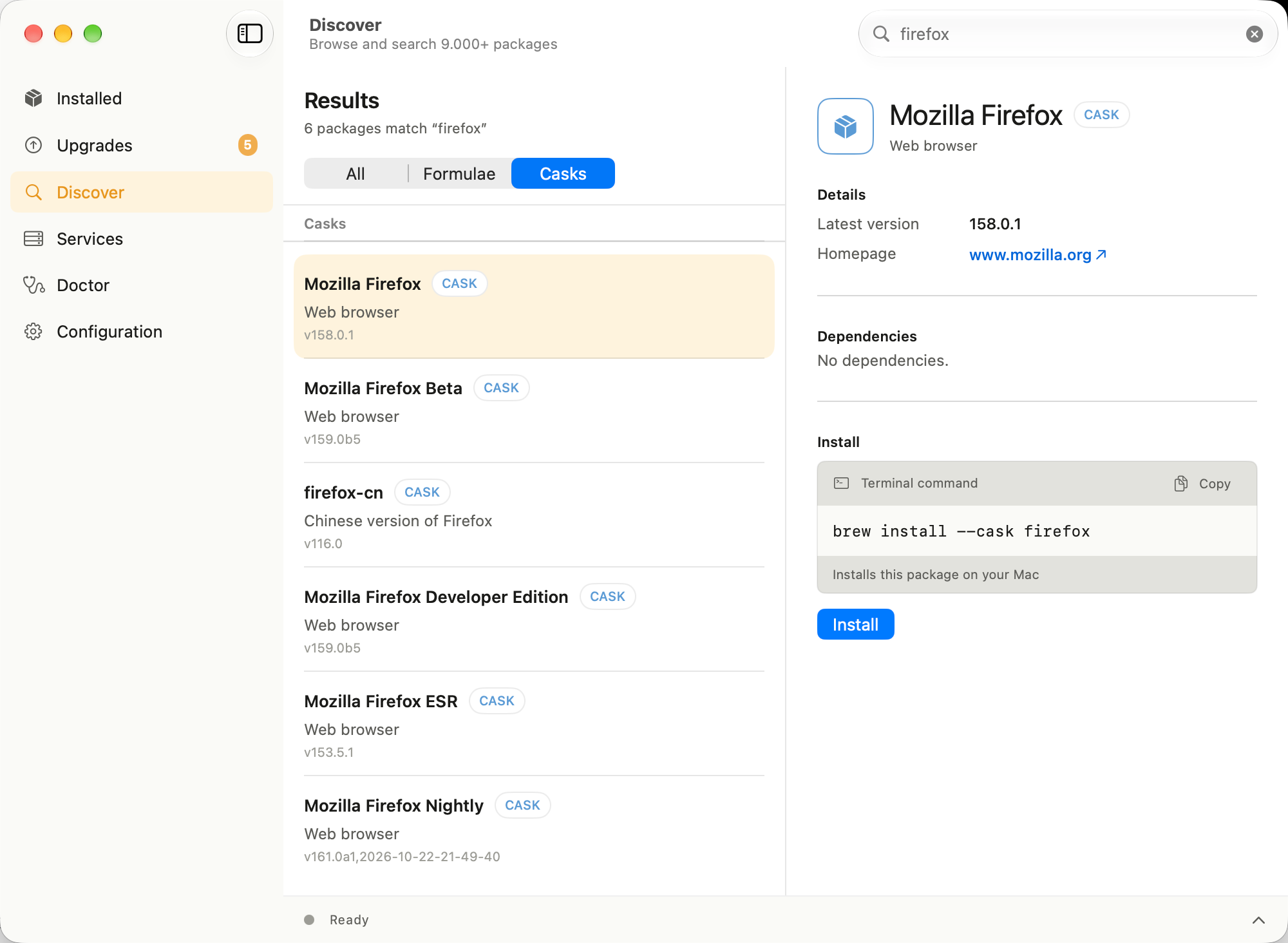
If you regularly install tools or Mac apps, try Homebrew to manage their installation and updates from one place.
Keeping track of individual downloads and updates can get tedious. Homebrew is a package manager: you ask it to install or update a tool, and it handles that process for you. It can also install many ordinary Mac apps. I also like being able to uninstall software I installed through Homebrew from the same place.
Homebrew now also has an official graphical app, BrewUI, for macOS Tahoe 26 or later. I have been using it and am happy with it so far.
Raycast
Raycast is one of my favourite apps. Like Spotlight, it starts with a searchable command box, but I use it for more and more small tasks: clipboard history, snippets for repeated text, and Quicklinks.
Clipboard history lets me retrieve something I copied earlier instead of losing it the moment I copy something else. It can also retain private text, so check its retention settings and excluded apps, and think about what you are comfortable keeping. If clipboard history is the only extra feature you want, Maccy is a more focused option.
Raycast also supports snippets: short pieces of text you can expand by typing an abbreviation in another app. macOS’s own Text Replacements can cover similar needs, though support varies by app.
Quicklinks let me open a saved website or search it directly from Raycast. With my yt Quicklink, I enter a search in Raycast and go straight to YouTube’s results. It saves a step and skips the homepage recommendations, which tend to distract me before I even type what I came for.
I also prefer Raycast’s application uninstaller to simply moving an app to the Trash, because it can offer to remove associated files as well. I would still use the developer’s own uninstaller when one is provided, and review Raycast’s removal list rather than assuming every suggested file should go. An Apple engineer’s reply in an older discussion explains why macOS leaves app data behind.
Raycast’s community extensions are where it really shines for me, but those probably deserve a post of their own.
At this point, I am probably too invested in my Raycast setup to switch back to Spotlight. That is a statement about my habits as much as it is a recommendation.
Obsidian
I use Obsidian for connected notes that stay as Markdown files in a folder.
Markdown is plain text with a little formatting syntax for things like headings and links. I like being able to connect notes and still open the files elsewhere.
Apple Notes now has Markdown import and export, but Obsidian still suits the way I work. It has built-in support for mathematical notation using LaTeX syntax, and community plugins can add things such as flashcards. There is plenty to experiment with, although I would be selective: Obsidian explains that community plugins inherit the app’s access, including access to files and the internet.
I do not pay for Obsidian Sync. I use iCloud Drive to sync my notes between my Apple devices. If you want to try that setup, follow Obsidian’s iCloud instructions, including using the Obsidian folder in iCloud Drive and keeping it downloaded on your Mac. Avoid having multiple sync services manage the same notes folder, and keep a separate backup of notes you care about.
You do not need to rebuild your whole setup in an afternoon. Try one thing the next time it would be useful. The shortcut will probably come with repetition, and if it does not, at least you know where to look.